A Partner Mailbox Endpoint allows CIC to act as an FTP or SFTP server. Your trading partners can connect to a Partner Mailbox as an FTP or SFTP client or as a Cleo Portal client. See Connecting to a Partner Mailbox.
A Partner Mailbox Endpoint can be used in multiple Data Flows, depending on whether it is a source or destination endpoint and the mailbox folder you choose. If used as a source endpoint, a folder with Upload permissions can only be used once. If used as a target endpoint, a folder with Download permissions can be used more than once. See Using Mailbox Folders for more details.
If you use a Partner Mailbox Endpoint as the source in a Data Flow with a Transformation Endpoint as the destination, you can use information about Partner Mailbox subfolders to help direct processing within your integration. See Processing Payloads based on the Endpoint Subfolders.
Partner Mailbox attributes
The Partner Mailbox Endpoint has the following attributes:
| Attribute | Description | ||||
|---|---|---|---|---|---|
| Allowed Connections |
Select one or all of the following: FTP, SFTP, and Cleo Portal. If you select FTP, you can also choose to require a secure connection. See Connecting to a Partner Mailbox for more information. |
||||
| Allowed File Types |
Restrict what kinds of files are permitted to be processed by this Endpoint. Choose from the following:
|
Accounts
Use this section to define the accounts allowed to log in to this Partner Mailbox. Add accounts to this Partner Mailbox as required by clicking Add another account.
Each account has the following attributes.
| Attribute | Description | ||||||||
|---|---|---|---|---|---|---|---|---|---|
| Authentication Type |
This section is displayed whenever you select SFTP in the Allowed Connections section. Choose from the following:
|
||||||||
| Username | Required. Specify the username to be used with the password below for authentication when you log in to the Cleo Portal to upload and download from this partner mailbox. | ||||||||
|
Password Confirm Password |
Required. Specify the password to be used with the username for authentication.
|
||||||||
| Key Authentication |
Specify one or more keys to be used for authentication. CIC supports multiple authentication keys. To specify multiple keys, paste the keys into the Key Authentication text area each on separate lines. The user can authenticate using any one of the keys specified. The following keys are supported in the OpenSSH format:
|
||||||||
| Optional. Specify the email address where you want to receive password reset requests. |
Mailbox Folders Tab
This tab allows you to configure folders from which you can send and receive files. See Using Mailbox Folders for details about how to configure folders.
Open PGP Tab
Use this tab to specify parameters and settings related to Open PGP.
Inbound
| Attribute | Description |
|---|---|
| Verify Signed Payloads |
Select to ensure that when a signed payload is received, the signature matches the payload that was sent. When you select this check box, you are prompted to select the trading partner's signing certificate. This field is prefilled with the outbound encryption certificate as the same certificate is commonly used for both. See Working With Certificates. |
| Accept Encrypted Payloads |
Select to accept encrypted inbound payloads. When you select this check box, you are prompted to select your decryption certificate. This field is prefilled with the outbound signing certificate as the same certificate is commonly used for both. See Working With Certificates. |
Outbound
| Attribute | Description |
|---|---|
| Sign |
Sign messages sent from this Endpoint. When you select Sign, you are prompted to select your signing certificate. This field is prefilled with the inbound decryption certificate as the same certificate is commonly used for both. See Working With Certificates. |
| Encrypt |
Apply encryption to messages sent from this Endpoint. When you select Encrypt, you are prompted to select the trading partner's encryption certificate. This field is prefilled with the inbound signing certificate as the same certificate is commonly used for both. See Working With Certificates . |
| Compress | Apply ZLIB compression to messages sent from this Endpoint. Choose this option for large files to conserve bandwidth and improve efficiency and security. |
| Text Output (ASCII armor) | Encase encrypted messages in ASCII for ease of sending using standard messaging formats. |
Advanced Tab
Use this tab to specify parameters and settings across several different areas.
OpenPGP Algorithms
| Attribute | Description |
|---|---|
| Hash Algorithm |
Choose the signing method used when OpenPGP packaging (with signing) is requested from the following:
|
| V3 Signature | Select this check box to sign messages with Version 3 signatures. |
| Encryption Algorithm |
Choose the algorithm you want to use to encrypt messages. The remote host receiving the message must be able to decrypt the message using the algorithm you choose. Choose from the following:
|
| Compression Algorithm |
Choose the algorithm you want to use to compress messages. The remote host receiving the message must be able to decrypt the message using the algorithm you choose. Choose either ZIP or ZLIB. |
General
| Attribute | Description |
|---|---|
| Password Expiration | Select to allow passwords to expire. |
| Expire password after |
Select a period after which passwords expire. Default value is 6 months. |
| Subdomain |
If you have more than one subdomain, select the one you want to use for this Endpoint. Note: This field appears only when you have more than one subdomain. |
Connections and Transfers
| Attribute | Description | ||||||||||||
|---|---|---|---|---|---|---|---|---|---|---|---|---|---|
| Inbound IP Whitelisting |
Specifies the IP addresses allowed to connect to this Endpoint. IP addresses can be a single address or a range of addresses. Enter addresses or address ranges one per row or separate them using commas. Note: Inbound IP Whitelisting is not available on Endpoints using Cleo's Limited Primary/Failover IP Network. See Limited Primary/Failover IP Network for more information. The following are examples of valid IP addresses:
|
Connecting to a Partner Mailbox
Once you have configured a Partner Mailbox, you can access it via FTP, FTPS, SFTP, and the Cleo Portal. Connection information is generated when Cleo configures your system for you. It is possible to have multiple subdomains configured. Contact your system administrator for more information about your specific configuration.
Your connection information is displayed on the Partner Mailbox Endpoint page.
Using Mailbox Folders
By default, CIC provides two folders to use with your Partner Mailbox, Upload and Download, within your home folder. This section describes adding folders (directly under your home folder) and subfolders (under a folder other than home), deleting folders, editing folders, and some considerations for using folders in Data Flows.
Adding Folders and Subfolders
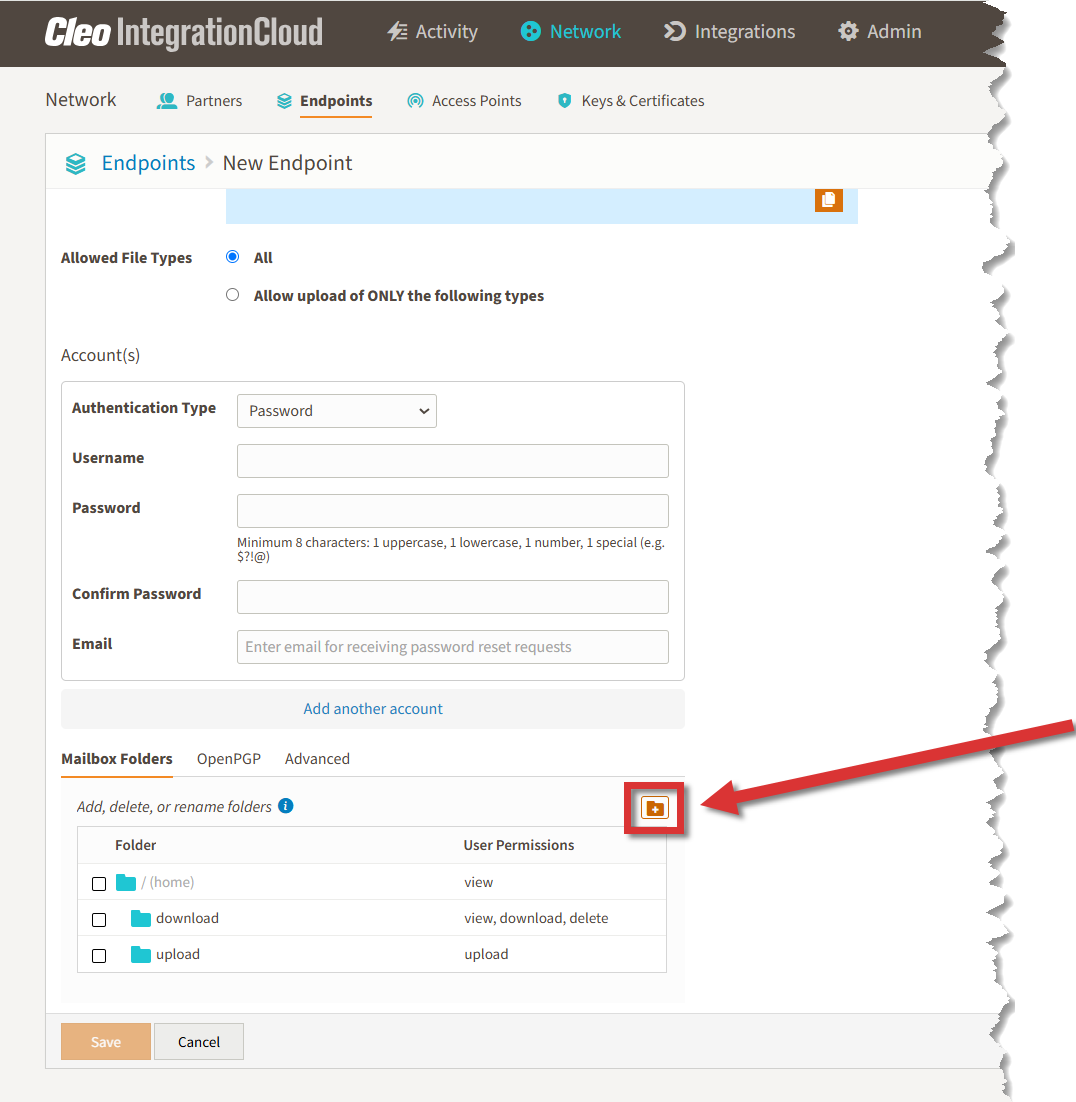
To add a folder directly under the home folder:
-
Without an existing folder selected, click the Add Folder button.
-
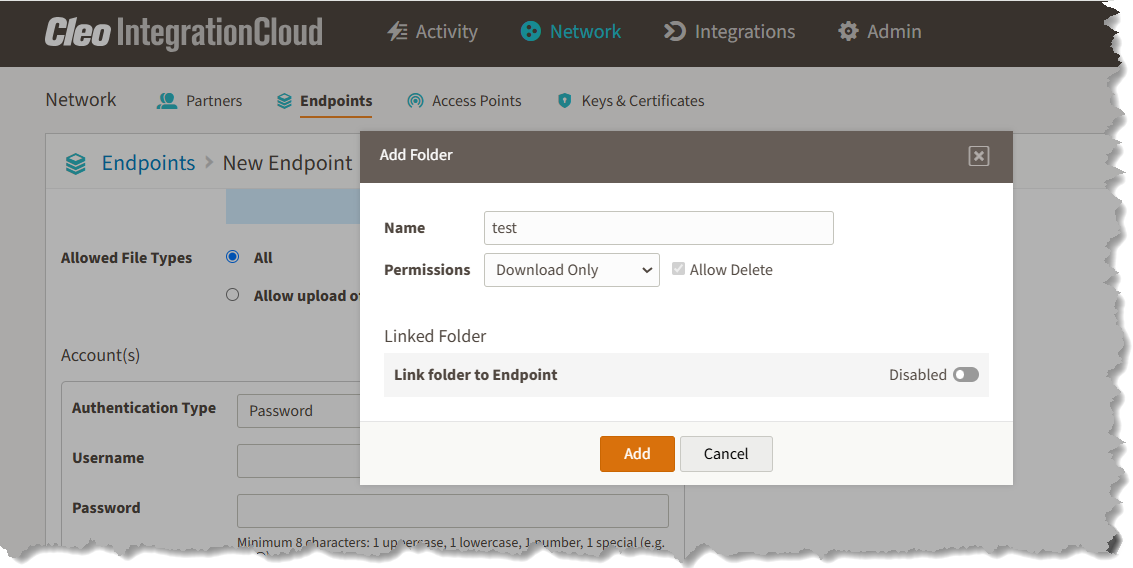
Name the folder, select permissions (see Understanding Folder and User Permissions) and, if necessary, Allow Delete (see Allow Delete) and click Add.
-
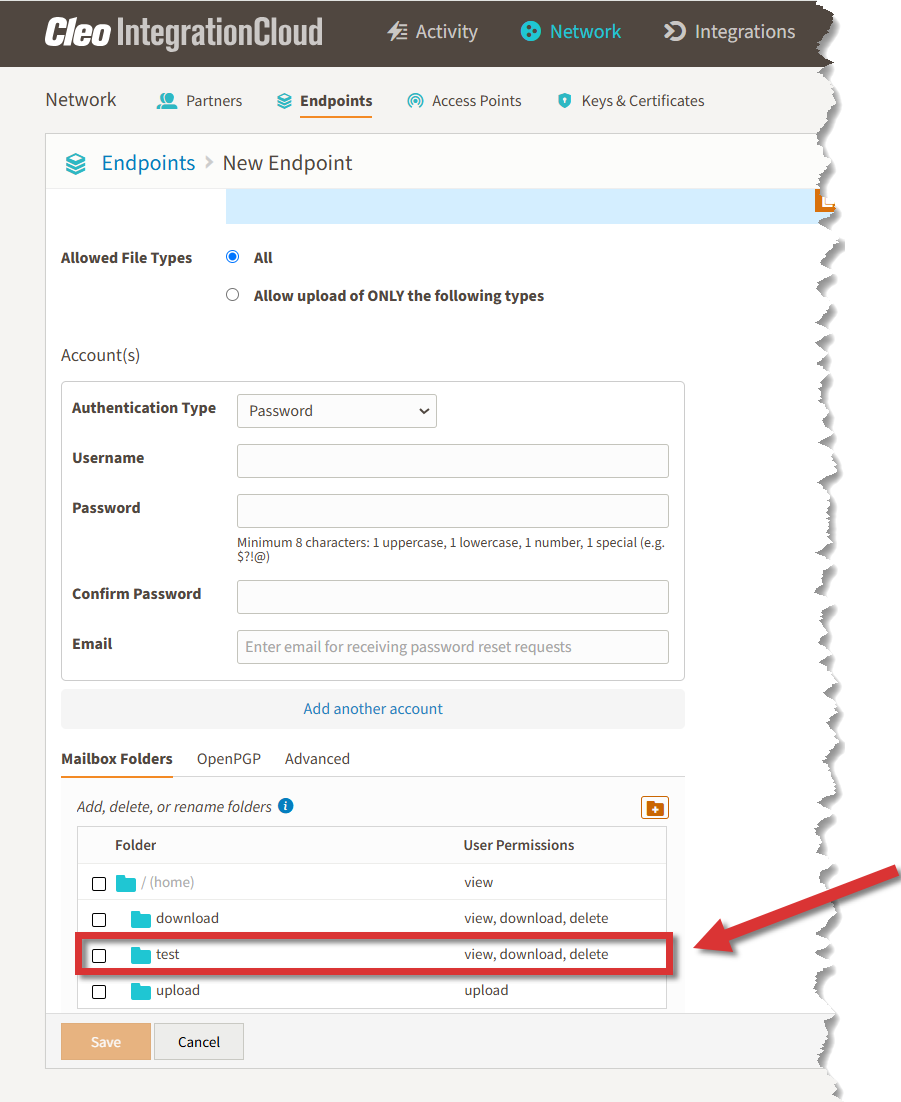
The new folder is added to your list of Mailbox Folders.
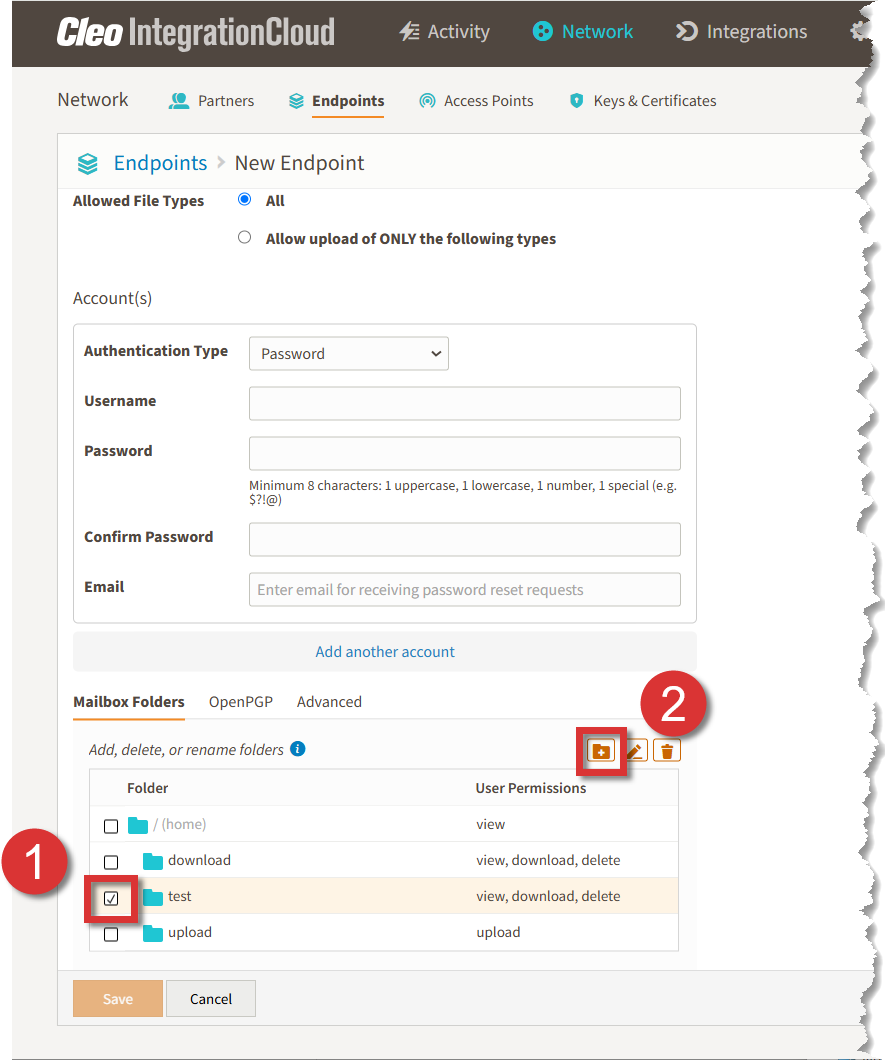
To add a subfolder:
-
Select the folder to contain the subfolder and click the Add Folder button.
-
Name the folder, select permissions (see Understanding Folder and User Permissions), and click Add.
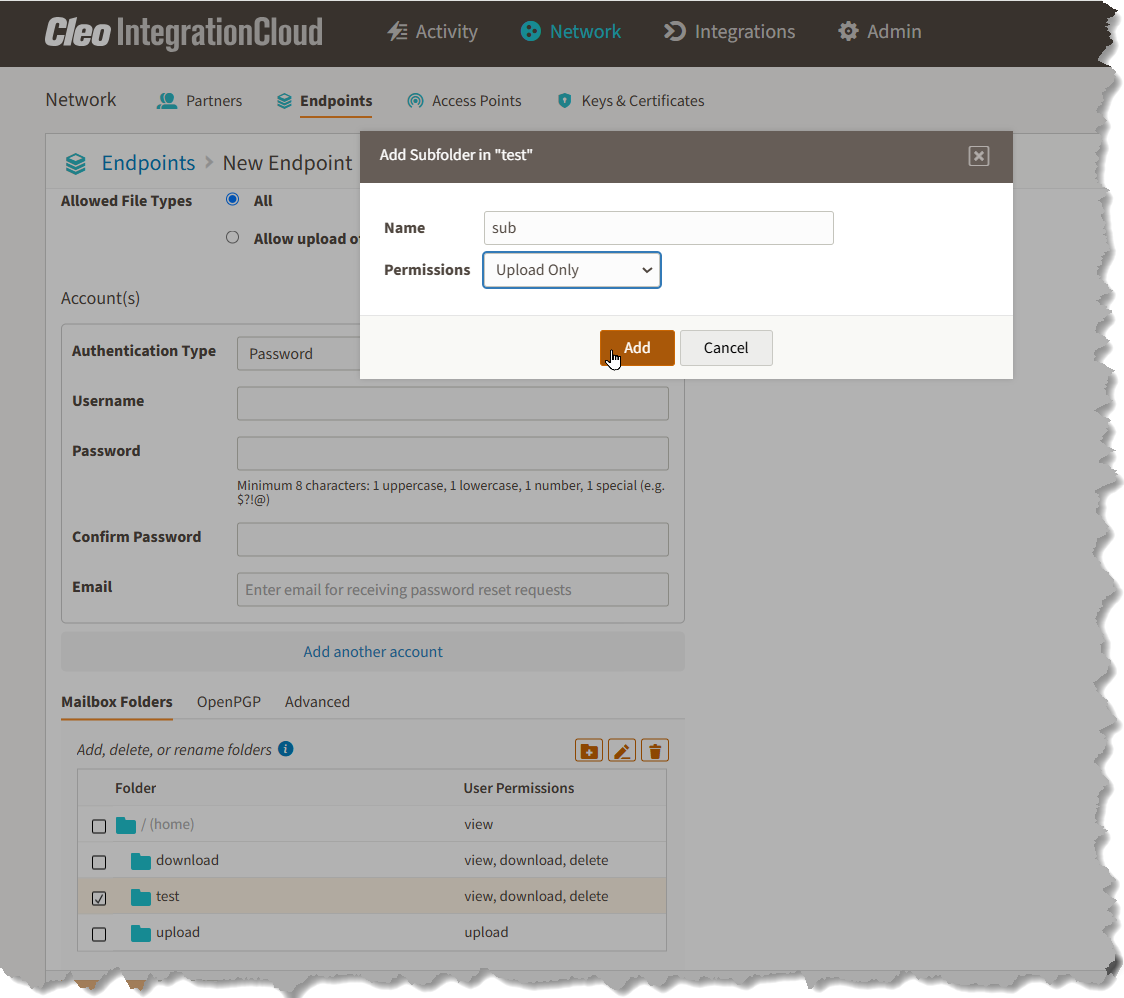
-
A subfolder is added to the selected folder.
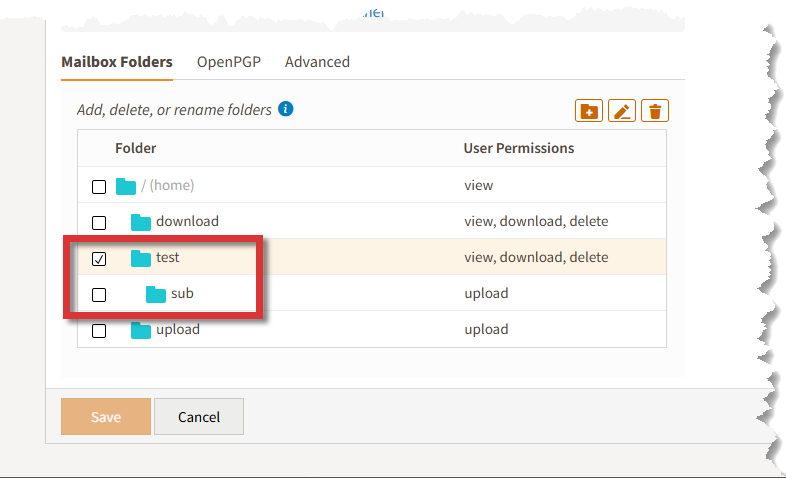
Deleting Folders
Select a folder and click the Delete Folder button.
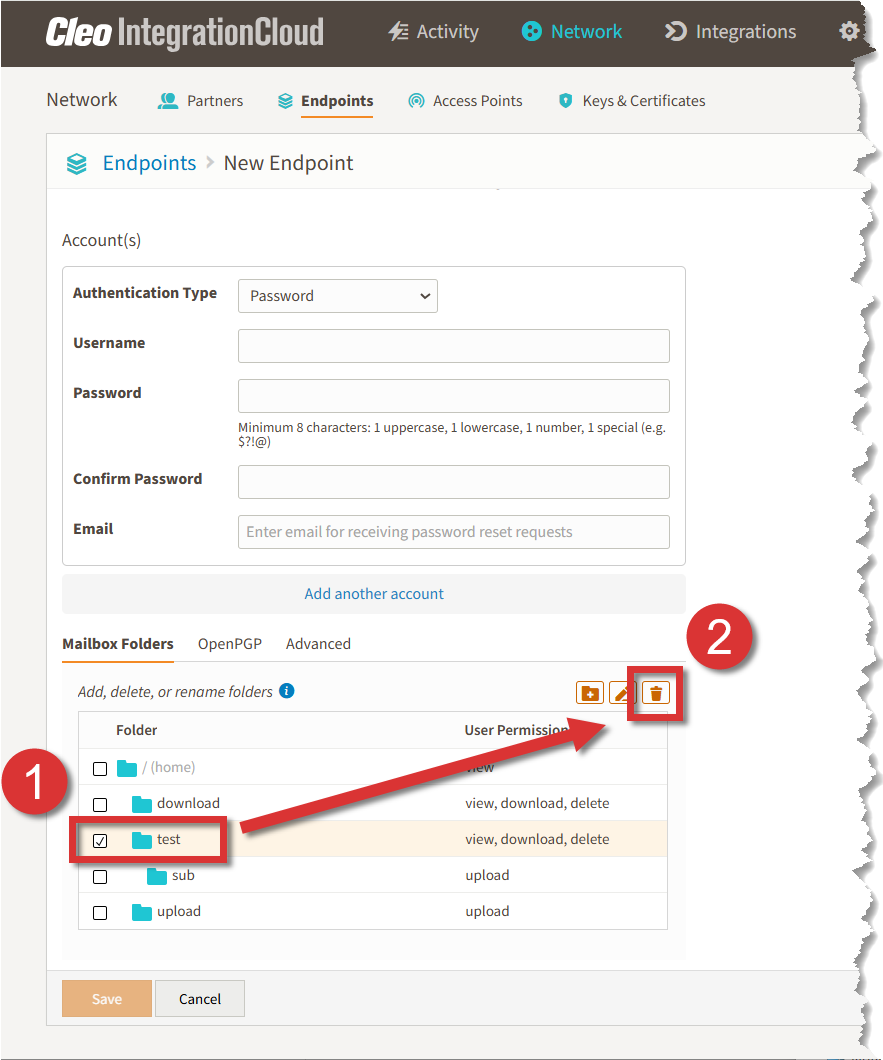
When you delete a folder that contains subfolders, CIC deletes the folder and its subfolders.
If the folder you select to delete has download permissions and there is data in that folder, you must choose whether to move data to another folder or archive the data.
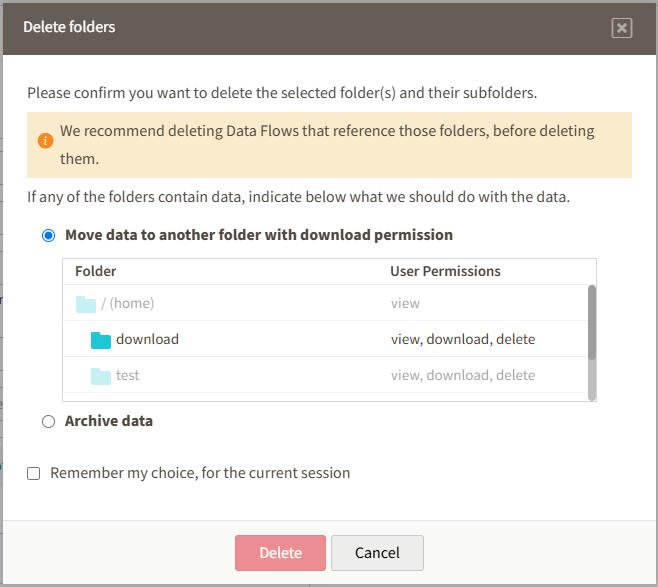
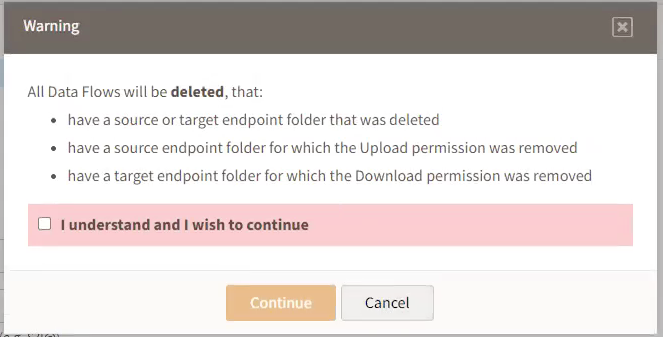
When you delete a folder and then save the Endpoint, CIC displays this warning and provides an opportunity to confirm the operation:
Renaming Folders and Editing Permissions
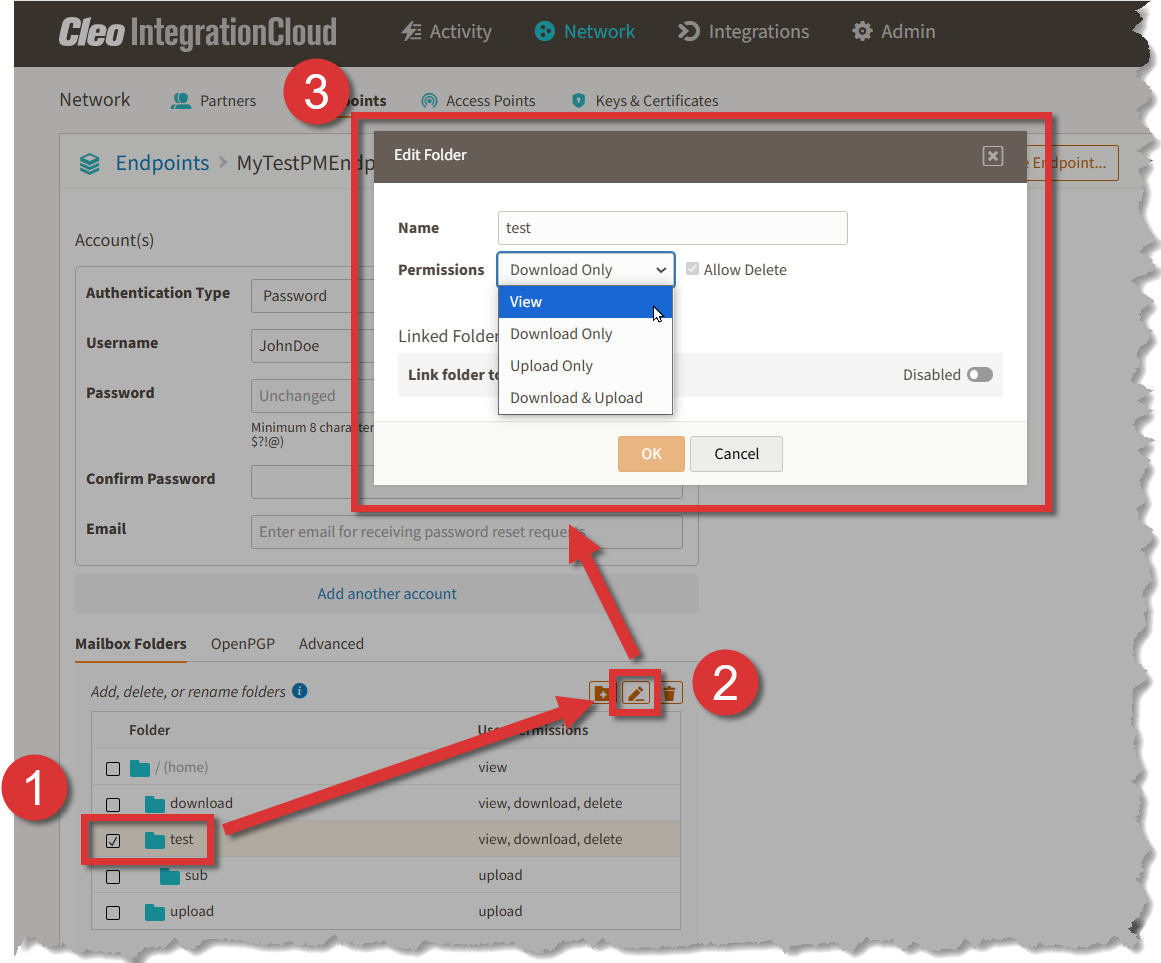
Select a folder, click the Edit Folder button, and edit the folder properties as necessary. See Understanding Folder and User Permissions and Allow Delete for details.
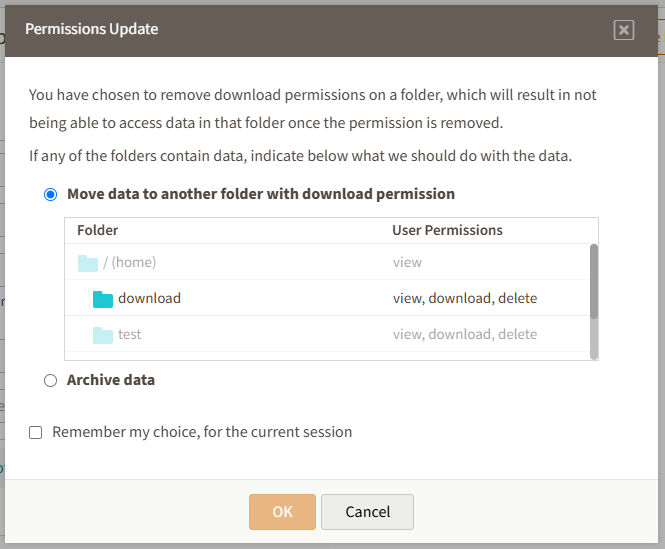
When you attempt to change permissions for a folder with Download permissions that contains data, you must choose whether to move the data to another folder or archive the data.
Understanding Folder and User Permissions
Folder permissions reflect how the folder is used while user permissions pertain to the operations available for a given folder. Folder permissions comprise combinations of user permissions that apply to folders.
You assign folder permissions when you create a folder. User permissions are assigned implicitly. The following table describes the relationship between folder and user permissions.
| Folder Persmissions | Description | User Permissions |
|---|---|---|
| View | Folder cannot be used in a Data Flow. However, subfolders with other permissions still can be added as a subfolder. | View |
| Download Only | Folder is only available when the Endpoint is a destination for a Data Flow. When used in a target endpoint, a folder with download permissions can be used more than once. |
View, Download, and Delete. For linked folders, content can be deleted only if Allow Delete is selected. For all other folders, Delete is always allowed. |
| Upload Only | Folder is only available when the Endpoint is a source for a Data Flow. When used in a source endpoint, a folder with upload permissions can only be used once. |
For linked folders, Upload and View permssions. For all other folders, Upload user permission only. |
| Download & Upload | Contents can be uploaded, downloaded, and deleted. |
View, Download, and Upload. For linked folders, content can be deleted only if Allow Delete is selected. For all other folders, delete is always allowed. |
Allow Delete
Determines whether users are permitted to delete files from the folder.
This option is available only for linked folders with Permissions set to Download Only or Download & Upload. See Adding Folders and Subfolders.
When selected, users with access to the folder can delete files using their client (FTP, SFTP, or the Cleo Portal), subject to the folder’s assigned permissions. When not selected, users can upload and/or download files (depending on folder permissions) but cannot delete them.
Linking Partner Mailbox Folders
You can link Partner Mailbox folders to cloud storage Endpoints -- like S3, AzureBlob, and GCS -- and File System Endpoints. This configuration enables partners to upload and download data from a shared location and eliminates the need to upload copies of documents into each Partner Mailbox. However, these linked folders cannot be used by Data Flows.
Notes:
- You can only link folders that are direct children of the Partner Mailbox home folder.
- When you delete an Endpoint to which you have linked, any folders associated with that Endpoint are also deleted.
- Linked folders cannot have child folders.
To add a linked folder:
- Open a Partner Mailbox Endpoint.
- Scroll down to the Mailbox Folders section.
-
Select the home folder and click the Add button.
The Add Folder dialog box displays.
- Give your folder a name and select permissions. See Understanding Folder and User Permissions.
-
Click the Link folder to Endpoint enable/disable toggle. A list of available Endpoints displays.
- Click an Endpoint to select it.
-
(Optional) Select the folder within the Endpoint you want to use. Click a folder from the displayed list or click the pencil icon to specify a path.
- Click Select.
-
Click Add.
To link an existing folder or unlink a folder:
- Select the folder.
- Click the Edit button.
- Click the Link folder to Endpoint enable/disable toggle.
- Click Save.
Note: If linking to an existing folder, any data in the folder will be lost.
To delete a linked folder:
-
Select the linked folder you want to delete and click the Delete button.
Partner Mailbox commands
The following commands are available for Partner Mailbox Endpoints when the Data Flow runs.
PUT
Valid for Target Endpoints.
Send one or more files to a folder that has User Permissions of 'Download Only' or 'Download & Upload'.
PUT [-UNI|-APE] "source" "destination"
| -UNI | Ensure destination filename is unique |
| -APE | Append to the existing destination file |
| source |
Source path
|
| destination | Destination path. The use of macro variables is supported. See Using Macro Variables in CIC (Destination context) for a list of the applicable macros. |
WAIT
Pause execution.
WAIT seconds| seconds | Number of seconds to pause. |
Comments
0 comments
Please sign in to leave a comment.